How to install a kit in the Claude desktop app, step by step
This guide takes you from the zip file to a working dashboard in your own Claude. You type one line. The rest is answering a few short questions.
Before you start
- The Claude desktop app. Anthropic offers it for macOS and Windows, with a beta for Linux (Get started with the desktop app).
- A paid Claude plan. Kits run in the Code tab. Anthropic's guide says Claude Code requires a paid subscription, and the pricing page lists it as not included in the Free plan (Claude plans).
- An Ownkit account. It is free, and you need it to download any kit, including the free one.
- A web browser to open the dashboard.
Step 1: Download the kit
Sign in on Ownkit, open the kit page and click the button next to the price. Paid kits are a one-time payment, and prices include VAT. Every kit you get is saved in your account, so you can download it again later.
Step 2: Unzip it into a folder of its own
Make a new folder, for example "Budget", and unzip the kit into it. Inside you should see a file called READ ME.txt and a folder called Ownkit. This folder is where your system will live, so pick a place you already back up.
Step 3: Open the Code tab and choose the folder
Open the Claude desktop app and click Code at the top. Choose Local, so Claude works with the files on your computer, then click Select folder and pick the folder from step 2 (Anthropic's quickstart).
Choose the folder that contains READ ME.txt, not the Ownkit folder inside it. If you pick the wrong one, the setup script notices and asks you to reopen one folder up.
Step 4: Type one line
Paste this line and press Enter:
Read Ownkit/START.md and follow it.
Step 5: Answer a few questions
Claude asks at most five short questions, one at a time, each with half a sentence on why it asks. If you skip one, it uses a sensible default. Then it creates the rules file, the dashboard, your data files and the skills in your folder. If files with the same name are already there, it merges them instead of overwriting them.
Approving file changes
The Code tab has permission modes. In Manual mode, Claude asks before it edits files or runs commands. In Accept edits mode, it accepts file edits on its own (permission modes). If you want to see every file the kit creates, choose Manual for the setup.
Step 6: Try the sample data, or start empty
Claude offers to load fictional sample data first, so you can see a filled dashboard straight away. When you are ready for your own data, tell Claude: clear the sample data.
Step 7: Open your dashboard
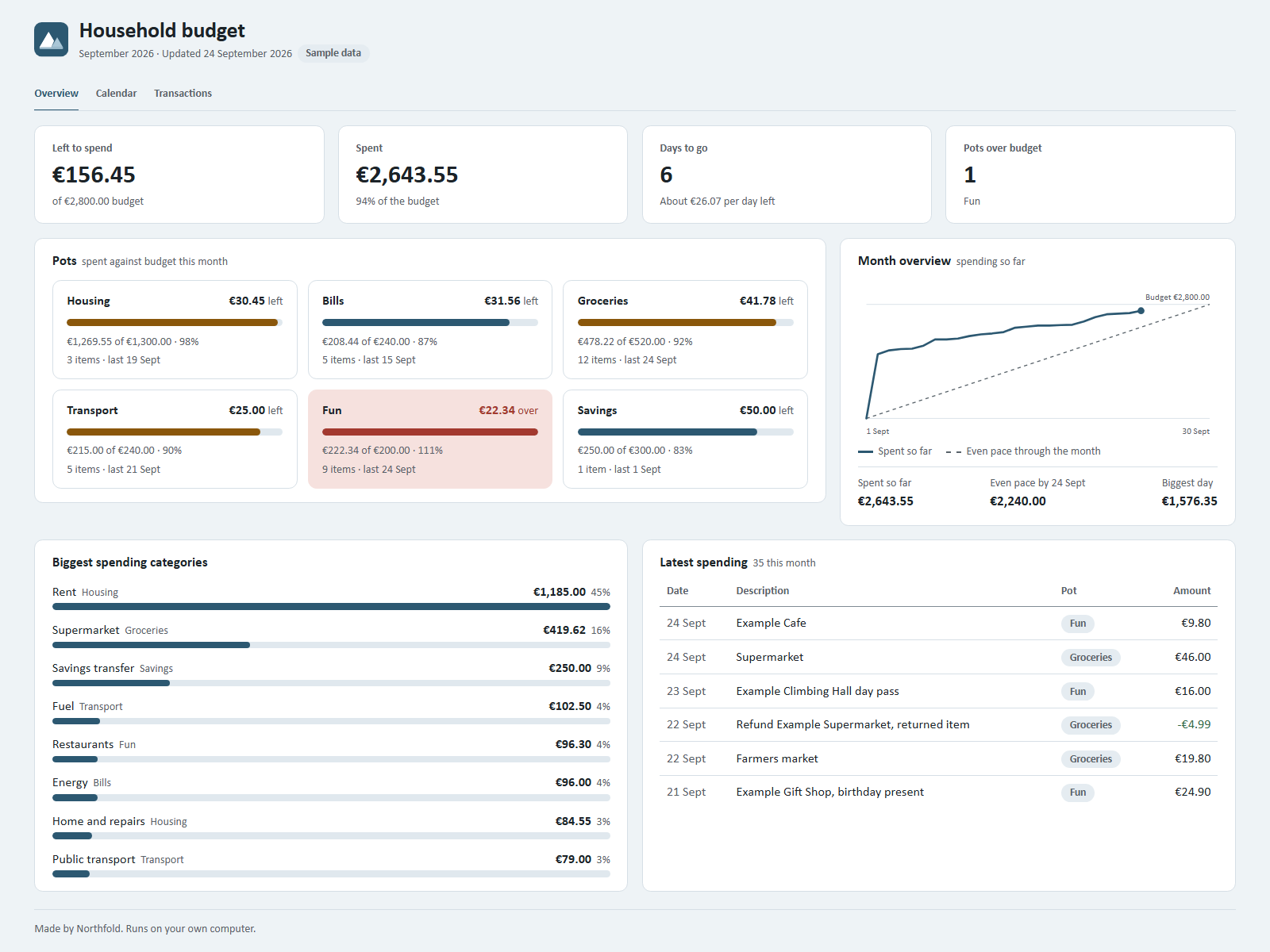
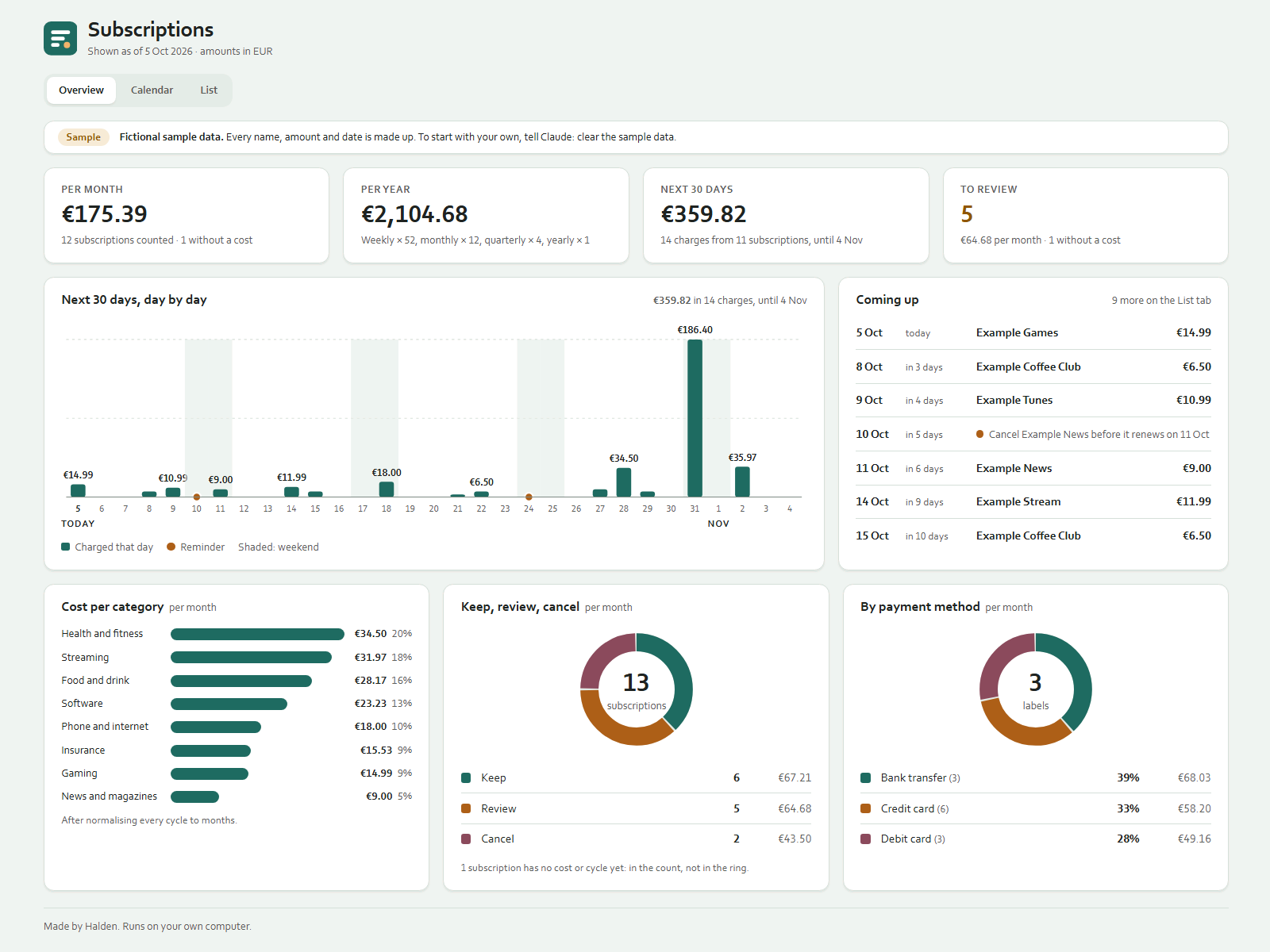
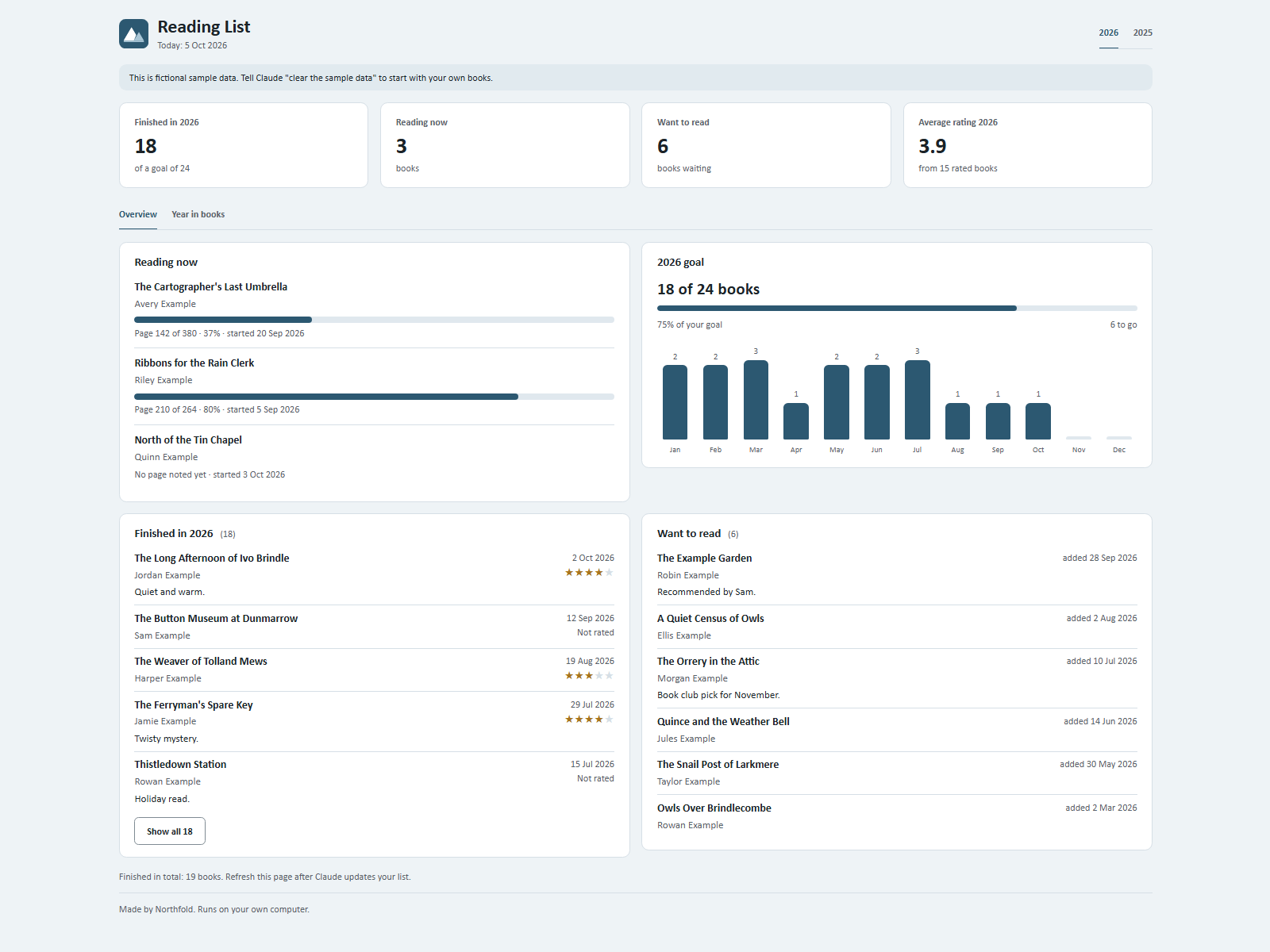
The dashboard is an HTML file in your folder. Double-click it to open it in your browser. It opens without an internet connection. After Claude updates your data, refresh the page to see the change.
Using it every day
Open the Claude desktop app, click Code and choose the same folder. Then type what happened, in plain language. Each kit page lists example sentences. For Reading List that is something like "I'm on page 120 now." or "Finished it, 4 stars, loved the ending."
You do not need to explain the system again. The rules file in your folder is a CLAUDE.md file, and Claude Code loads it at the start of every session (How Claude remembers your project).
If something goes wrong
Clicking Code asks you to upgrade
That means your account is on a plan without Claude Code. Anthropic's guide says you need a paid plan first (Get started with the desktop app).
Claude says you opened the wrong folder
You probably selected the Ownkit folder itself. Choose the folder one level up, the one that holds READ ME.txt, and type the line again.
The setup stopped halfway
Type continue. The setup script keeps its progress in Ownkit/progress.md and picks up where it stopped.
The dashboard does not show your latest change
Refresh the page in your browser. The dashboard reads the data file when it loads.
The kit mentions Node.js
Some kits use Node.js, which is free, for a helper script. It is optional. The kit page says what happens without it: usually Claude does the same step by hand.
Start with the free kit
Reading List is free with an Ownkit account and uses exactly these steps. Once it works, every other kit installs the same way, from Budget Tracker to Family Week Planner. Want to know what you just installed? Read what an AI kit is.
Sources
- Get started with the desktop app, Claude Code Docs, Anthropic. Read on 5 October 2026.
- Plans and pricing, Claude, Anthropic. Read on 5 October 2026.
- How Claude remembers your project, Claude Code Docs, Anthropic. Read on 5 October 2026.